



Mirror Your iPhone Screen to Any TV — No Cables, No Delays

Posted by Helly
from the Agriculture category at
17 Nov 2025 06:31:54 pm.
Share this page: 


There’s a moment we all experience. You’re watching something on your iPhone — a short video, a presentation, a TikTok you have to show someone — and suddenly you’re trying to tilt the phone just right so everyone can see. Spoiler: they never do.
The good news? You don’t need to pass your phone around or fumble with adapters. Screen mirroring from iPhone to TV has gotten way easier, and most of the time, it works in just a few taps — no HDMI, no lag, no setup headaches.
As someone who juggles work calls, family time, and the occasional binge scroll, I’ve tested plenty of screen mirroring methods. Some are great. Some are glitchy. This guide breaks down the ones that work — reliably and quickly.
Why Mirror Your iPhone Screen in the First Place?
It’s not just about watching content. Mirroring your screen opens up everyday use cases:
- Want to share a slideshow with your family? Done.
- Running through a lesson or demo in front of a group? Easy.
- Trying to show a recipe while cooking, or stream Reels without squinting? You got it.
- Hosting a casual movie night using files stored on your phone? No problem.
And because it mirrors your entire screen, you’re not limited to apps that support casting. Anything you can open on your phone, you can show on your TV — browser, camera, live feeds, whatever.
What You’ll Need
No need to overthink it. Here’s the basic setup:
- An iPhone running iOS 12 or newer
- A smart TV (AirPlay 2-enabled, or one with Chromecast, Fire TV, or Roku support)
- A Wi-Fi network — both your iPhone and TV must be on the same one
- Optional: a third-party app if your TV doesn’t support AirPlay
If your TV already has AirPlay built in (many newer Samsung, LG, Sony, and Vizio models do), you’re already halfway there.
How to Use AirPlay for Screen Mirroring (If Your TV Supports It)
This is Apple’s native tool — it’s built into your iPhone and works without any downloads.
Here’s how to mirror using AirPlay:
- Turn on your TV and make sure it’s connected to Wi-Fi
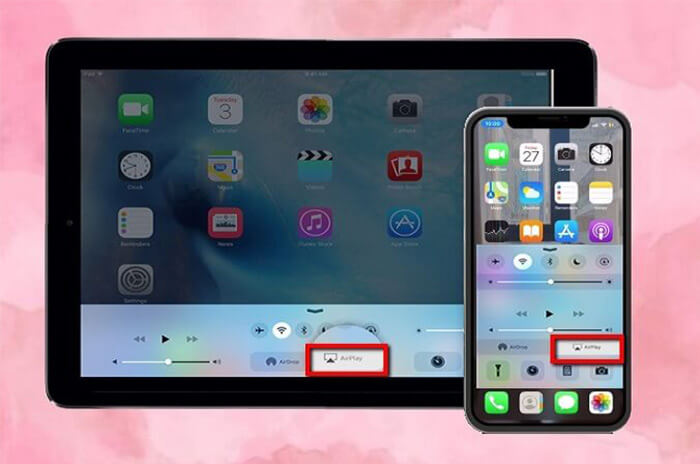
- On your iPhone, swipe down from the top right to open Control Center
- Tap Screen Mirroring
- Select your TV from the list
Your screen should appear on your TV within seconds. Whatever you open on your phone now shows up on the big screen, from Instagram to Excel to FaceTime.
Want to stop? Just open Control Center again and tap Stop Mirroring.
If You Don’t Have AirPlay — Here’s the Alternative
Not all TVs support AirPlay. That used to be a dealbreaker. Now? Not at all.
There are third-party apps that let you mirror your iPhone screen to Chromecast, Roku, Fire TV, or DLNA-enabled TVs — without buying a single adapter.
One solution I tested recently worked flawlessly across all my devices. It gave me low-latency mirroring (important if you’re showing video or live content), and it didn’t require installing anything on the TV.
The setup was simple: I connected my iPhone and TV to the same Wi-Fi, opened the app, selected my device, and within seconds I was screen sharing.
If you want to try it for yourself, I recommend checking out this option: Watch iPhone content on TV — it's one of the easiest ways I’ve found to mirror across platforms, especially if you're not using Apple TV.
Real Use Cases I Rely On (and You Might Too)
Here’s where screen mirroring quietly became part of my routine:
- Client meetings from my phone: When I didn’t want to pull out a laptop just to show a design or chart
- Family movie night: Kids wanted to watch a downloaded video that wasn’t available on the TV app
- Quick photo album reviews: Scrolling through a gallery from a recent trip without everyone hovering over my shoulder
- Streaming mobile games: Yes, games — mirrored to the TV with zero delay and still controlled from my phone
- At-home workouts: Following app routines without having to constantly pick up the phone or adjust it
Mirroring isn’t a fancy feature. It’s practical — and once you use it a few times, it becomes second nature.
Tips to Get the Smoothest Experience
To avoid lag or pixelated playback, here’s what I’ve learned:
- Use 5GHz Wi-Fi: Faster and less crowded than 2.4GHz
- Keep your iPhone charged: Mirroring uses more battery than usual
- Turn on Do Not Disturb: Avoid interruptions from texts or pop-ups while screen sharing
- Start in landscape mode: Most TVs are horizontal, and apps look better full screen
- Close unused apps: Frees up memory and improves performance during live mirroring
Also: Don’t walk too far away. Your Wi-Fi signal strength matters more than you think.
Final Thoughts: Screen Mirroring That Just Works
You don’t need to dig through settings or buy overpriced cables. Mirroring your iPhone screen to your TV is quick, wireless, and once you try it, it’s hard to go back.
Whether you’re sharing work, showing a video, or just don’t feel like squinting — you’ve already got the tools. All that’s left is to use them.
No lag. No mess. No delays.
Just a bigger screen for everything you already do on your phone.
<!-- notionvc: 264031c0-4cae-4c7b-bb28-5ac67f94bf69 -->
Tags: TV
0 Comments